

User accounts are one of the most important security controls on a WordPress website.
A compromised Administrator account can give an attacker extensive control over a site, while an unnecessarily powerful Editor or Author account can create risks that are easy to overlook.
The good news is that WordPress already provides a built-in system for controlling user access through roles and capabilities. A role groups together capabilities, while capabilities determine which actions a user can perform.
But simply choosing a WordPress role is not enough.
A secure user-management strategy should also consider who has access, what they can do, how long they need access, whether their accounts are protected, and whether their permissions are still necessary.
This WordPress user roles security guide explains how to reduce unnecessary privileges, protect Administrator accounts, review existing users, secure editorial workflows, and build a safer WordPress permission structure.
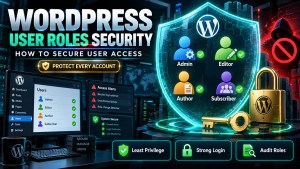
Why WordPress User Roles Matter for Security
WordPress roles are more than a way to organize users.
They are part of the site’s access-control system.
When a user logs into WordPress, their role determines the capabilities available to that account. For example, an Administrator has access to a much broader set of capabilities than a Subscriber.
This creates an important security principle:
A user should have enough access to perform their job, but not more access than necessary.
WordPress documentation describes this approach as the principle of least privilege: users should receive only the privileges essential for the work they need to perform.
For example:
- A writer may need to create posts.
- An Author may need to publish their own posts.
- An Editor may need to manage multiple writers.
- An Administrator may need to manage plugins and site settings.
- A Subscriber may only need an account to access restricted content.
Giving every one of these users Administrator access would eliminate those distinctions and create unnecessary risk.
WordPress Roles Security at a Glance
The standard WordPress role structure provides several levels of access.
| Role | Main Responsibility | Security Exposure |
|---|---|---|
| Subscriber | Account/profile access | Low |
| Contributor | Create and manage own drafts | Low–Moderate |
| Author | Publish own content | Moderate |
| Editor | Manage site content | High |
| Administrator | Manage an entire site | Very High |
| Super Admin | Manage a Multisite network | Critical |
The exact capabilities can be modified by plugins, custom development, and other configurations, so the role name should never be treated as the complete security picture. WordPress supports adding and removing capabilities from roles and creating custom roles.
For a detailed comparison, see WordPress Permissions Matrix.
The Most Important WordPress User Roles Security Rule
Give users the least powerful role that allows them to do their job
This is the foundation of secure WordPress user management.
Suppose you have a freelance writer who needs to submit articles.
You could give them:
Administrator
But they might only need:
Contributor
If they need to publish their own articles, perhaps:
Author
If they need to review and publish content from several writers:
Editor
The goal is not to make users as restricted as possible.
The goal is to make their permissions appropriate to their responsibilities.
WordPress itself recommends assigning users the most restrictive role that still provides the permissions they need.
Protect Administrator Accounts First
Administrator accounts deserve the highest level of attention because they have extensive control over a single WordPress site.
An Administrator can generally manage areas such as:
- Users
- Plugins
- Themes
- Site settings
- Content
- Comments
- Media
- Other administrative functions
WordPress’s documentation specifically warns that Administrator-level access can expose settings and areas that could break a website if configured incorrectly.
A compromised Administrator account can therefore have consequences far beyond a single article or user profile.
Security practices for Administrator accounts
Use:
- Strong, unique passwords
- Two-factor or two-step authentication where available
- Individual accounts for each administrator
- Regular account reviews
- Trusted devices and secure login practices
- Timely removal of unnecessary access
WordPress’s hardening guidance also recommends strong passwords and additional authentication measures such as two-step authentication.
Avoid Shared WordPress Administrator Accounts
A shared Administrator account may seem convenient.
For example:
used by:
- The website owner
- A developer
- An employee
- An agency
But this creates several problems.
You lose clear accountability because multiple people are using the same identity.
You also have to change the shared credentials whenever someone leaves the team.
A better structure is:
John → individual Administrator account
Sarah → individual Editor account
Developer → separate account
This makes it easier to determine who has access and remove a specific person’s permissions when their work ends.
Do Not Give Administrator Access Just Because Someone Is Trusted
Trust and privilege are different concepts.
You might completely trust an employee while still deciding that they do not need access to:
- Plugins
- Themes
- User management
- Critical settings
- Security configuration
For example, an editorial manager may be highly trusted but still only require the Editor role.
This is an important distinction:
Trusted user ≠ Administrator
The user’s responsibilities should determine their access.
Secure WordPress Editorial Workflows
Content teams often require several levels of access.
A secure workflow might look like this:
Contributor
↓
Creates a draft
↓
Editor
Reviews and edits the content
↓
Publishes the article
This approach avoids giving every writer publishing privileges.
Another workflow might be:
Author
↓
Writes and publishes their own content
↓
Editor
Reviews content when necessary
The correct structure depends on how your organization works.
For more information, see WordPress Editor Role, WordPress Author Role, and WordPress Contributor Role.
Review Users Regularly
One of the easiest WordPress security tasks to overlook is user-account cleanup.
A website may accumulate accounts over time.
For example:
- Former employees
- Former freelancers
- Previous developers
- Agencies
- Guest writers
- Temporary contractors
- Test accounts
- Old Administrator accounts
An account that was necessary two years ago may no longer have a legitimate reason to exist.
Perform a regular user audit
For every account, ask:
- Who owns this account?
- Why does the account exist?
- What role does it have?
- Does the user still need access?
- Does the user still need the current role?
- Is the account protected appropriately?
If there is no legitimate reason for an account to remain active, remove or otherwise appropriately disable its access according to your site’s operational requirements.
Pay Special Attention to Old Administrator Accounts
Not every unused account is equally dangerous.
An unused Subscriber account is very different from an unused Administrator account.
Prioritize your review by privilege level.
A useful order is:
- Super Administrators
- Administrators
- Editors
- Authors
- Contributors
- Subscribers
The more capabilities an account has, the more important it is to verify that the access remains justified.
Review User Roles After Staff Changes
Employee and contractor changes are an important trigger for permission reviews.
When someone:
- Leaves the company
- Changes departments
- Stops writing
- Finishes a development project
- Ends a contract
- Changes responsibilities
their WordPress role should be reconsidered.
For example:
Developer → Administrator
may be appropriate during development.
After the project:
Developer → no longer requires access
Leaving temporary privileges in place indefinitely is a common access-management mistake.
Be Careful With Third-Party Plugins
Your WordPress security model does not stop with WordPress core.
Plugins can introduce:
- New roles
- New capabilities
- Custom post types
- Additional administrative screens
- User-management functions
- Ecommerce permissions
- Membership permissions
- Course-management permissions
- Other access controls
WordPress explicitly allows roles and capabilities to be extended or modified.
Therefore, installing a plugin can change the effective permission environment of your website.
Before installing a plugin that introduces user-management functionality, consider:
- What capabilities does it add?
- Which roles receive them?
- Can those capabilities be customized?
- Does it create its own roles?
- Can an existing role suddenly access sensitive functionality?
Do Not Assume Every Plugin Uses WordPress’s Default Roles
A plugin may create its own access system.
For example, an ecommerce plugin might introduce permissions related to:
- Orders
- Products
- Customers
- Store settings
A learning-management plugin might introduce permissions for:
- Courses
- Lessons
- Students
- Instructors
A membership plugin might create permissions for:
- Members
- Membership levels
- Restricted content
Therefore, your WordPress user-role audit should consider both:
WordPress core permissions
and
plugin-specific permissions.
Use Custom Roles When Default Roles Are Too Broad
Sometimes none of the standard roles provides the correct permission combination.
For example, imagine a website needs a user who can:
- Edit posts
- Publish posts
- Upload media
- Manage SEO-related content
but should not:
- Install plugins
- Change themes
- Manage users
- Modify critical site settings
Giving that person Administrator access may provide far more authority than necessary.
A custom role can provide a more precise solution.
WordPress supports creating roles and adding or removing capabilities programmatically.
See Custom WordPress Roles for a deeper guide.
Audit WordPress Capabilities, Not Just Role Names
A role name is useful, but it is not the entire security model.
The more important question is:
What can this user actually do?
For example, an Editor normally has a defined collection of capabilities, but plugins or custom code can alter the permission environment.
WordPress’s capability system is designed so that actions can be checked against a user’s capabilities before allowing sensitive operations.
This is why a serious permission audit should consider:
- Role
- Capabilities
- Custom roles
- Plugins
- Custom code
- Multisite configuration
For the fundamentals, see WordPress Capabilities Explained.
Protect Users Who Can Publish Content
Publishing privileges deserve attention even when a user is not an Administrator.
An Author or Editor may be able to publish content without having access to plugins or site settings.
That still makes the account valuable to an attacker.
A compromised publishing account could potentially be used to:
- Publish unauthorized content
- Modify existing articles
- Insert malicious links
- Change visible content
- Damage the site’s reputation
Therefore, security should not focus exclusively on Administrators.
Protect every account that can make meaningful changes.
Secure User Accounts With Strong Authentication
Every WordPress account should be protected by appropriate authentication practices.
At minimum:
- Use unique passwords.
- Avoid predictable credentials.
- Never reuse important passwords.
- Protect administrator accounts especially carefully.
- Consider two-factor authentication.
- Review suspicious or unexpected login activity when appropriate.
WordPress’s official hardening documentation emphasizes strong passwords and recommends two-step authentication as an additional security measure.
Keep WordPress, Plugins, and Themes Updated
User permissions cannot compensate for outdated software.
WordPress’s security documentation recommends keeping WordPress itself and installed plugins and themes up to date.
A secure user-role strategy should therefore exist alongside:
- Core updates
- Plugin updates
- Theme updates
- Secure hosting
- Backups
- Monitoring
- Appropriate file permissions
User access is one layer of WordPress security—not the entire security system.
Remove Unused Plugins and Themes
Unused software can increase the site’s attack surface.
If a plugin or theme is no longer needed, consider whether it should remain installed.
This is particularly important for old software that is no longer maintained.
WordPress recommends choosing themes and plugins that are actively receiving updates.
Protect the WordPress Login Area
The login process is the gateway to user accounts.
Protecting it is therefore important for every role, especially privileged accounts.
WordPress’s hardening documentation discusses additional protections for the administration area, HTTPS, and other measures that can reduce exposure to attacks.
Your security strategy may include:
- HTTPS
- Strong authentication
- Two-factor authentication
- Login monitoring
- Appropriate rate limiting or security controls
- Secure hosting
- Regular software updates
Avoid relying on a single security measure.
Do Not Rely on Hiding the Login URL
Changing or hiding the login URL is not a replacement for proper authentication and authorization.
A secure WordPress installation should still rely on:
- Strong credentials
- Appropriate roles
- Capability checks
- Updated software
- Secure hosting
- Monitoring
- Backups
Security through obscurity should not be your primary defense.
Review Administrator Capabilities After Installing Plugins
A new plugin may change the administrative experience or introduce new capabilities.
After installing important plugins, check whether:
- New roles were created
- Existing roles changed
- New administrative menus appeared
- New sensitive capabilities were introduced
- Editors or other users gained access they did not previously have
This is especially important for plugins that handle:
- Payments
- Users
- Memberships
- Customer data
- Ecommerce
- Courses
- Site configuration
Be Careful With Custom Code
Custom code can change the security model just as easily as a plugin.
For example, developers can add capabilities to a role or remove them. WordPress provides APIs for modifying roles and capabilities.
Poorly designed custom code can therefore create unexpected access.
Before deploying custom permission logic, test it using accounts representing the actual roles in your workflow.
Use Capability Checks in Custom Development
If you develop WordPress functionality, do not assume that a logged-in user should automatically be allowed to perform an action.
The code should check whether the current user has the appropriate capability.
WordPress’s developer documentation explicitly recommends checking user capabilities when building functionality that allows users to submit or modify data.
This matters because authentication answers:
“Who is this user?”
Authorization answers:
“Is this user allowed to perform this action?”
Those are different security questions.
WordPress Authentication vs Authorization
These concepts are often confused.
Authentication
Authentication verifies the user’s identity.
For example:
Username + password → identifies the account
Authorization
Authorization determines what the authenticated account can do.
For example:
Editor → can manage certain content
Administrator → can manage the entire site
A strong WordPress security strategy requires both.
WordPress User Roles Security Checklist
Use this checklist when auditing your website.
User accounts
-
Every user has an identifiable account.
-
Shared Administrator accounts have been avoided.
-
Former users no longer have unnecessary access.
-
Test accounts have been reviewed.
-
Old developer accounts have been reviewed.
Roles
-
Every user has an appropriate role.
-
Administrators are limited to trusted users.
-
Writers do not receive unnecessary administrative access.
-
Temporary privileges have been removed.
-
Custom roles are used when appropriate.
Authentication
-
Administrator passwords are strong and unique.
-
Privileged accounts use additional authentication protection where available.
-
Users understand basic credential security.
-
HTTPS is enabled.
Software
-
WordPress is up to date.
-
Plugins are updated.
-
Themes are updated.
-
Unused software has been reviewed.
-
Security-related updates are not ignored.
Permissions
-
User capabilities have been reviewed.
-
Plugin-created roles have been checked.
-
Custom capabilities have been documented.
-
Multisite permissions have been reviewed where applicable.
Recovery
-
Backups are performed regularly.
-
Backups are stored independently.
-
Restoration procedures have been tested.
A Practical WordPress User Roles Security Audit
For a small or medium-sized website, you can perform a basic audit using the following process.
Step 1: Export or list your users
Create a list of every account with dashboard access.
Step 2: Identify privileged accounts
Start with Administrators and Super Administrators.
Step 3: Document each user’s responsibilities
Write down what each person actually needs to do.
Step 4: Compare responsibilities with assigned roles
Ask whether the current role provides more access than necessary.
Step 5: Check plugins and customizations
Determine whether additional capabilities have been introduced.
Step 6: Remove unnecessary access
Downgrade, disable, or remove accounts when appropriate.
Step 7: Protect remaining accounts
Ensure strong authentication and appropriate security practices.
Step 8: Schedule another review
User permissions should not be treated as a one-time configuration.
A Simple Secure WordPress Team Structure
For a typical content website, a structure like this may be appropriate:
| Team Member | Possible Role | Purpose |
|---|---|---|
| Site owner | Administrator | Overall management |
| Technical manager | Administrator | Technical administration |
| Content manager | Editor | Content oversight |
| Staff writer | Author | Own published content |
| Guest writer | Contributor | Draft submission |
| Registered reader | Subscriber | Account access |
This is only a starting point.
Your actual structure should reflect the site’s workflow and the capabilities each person genuinely requires.
WordPress User Roles Security and Multisite
Multisite requires additional care because permissions can exist at different scopes.
A site Administrator manages an individual site, while the Super Admin role has network-level responsibilities. WordPress documentation distinguishes Super Admin from the standard Administrator specifically in the context of Multisite.
Therefore, when auditing a Multisite installation, ask two separate questions:
What can this user do on one site?
and
What can this user do across the network?
Network-level access should be restricted particularly carefully.
See WordPress Super Admin Role for more information.
What to Do When a User Has Too Much Access
If you discover that a user has more access than necessary, don’t automatically delete the account.
First determine why the access exists.
Then consider:
- Assigning a less privileged standard role.
- Removing unnecessary capabilities.
- Creating a custom role.
- Removing plugin-specific permissions.
- Removing temporary access.
- Deleting the account if it is no longer required.
Document important changes so future administrators understand why the permission structure exists.
What to Do After a User Leaves
When an employee, freelancer, developer, or agency finishes working on the website, perform an access review.
Check:
- WordPress account
- Administrator privileges
- Plugin accounts
- Hosting access
- FTP/SFTP access
- Database access
- Security services
- Third-party integrations
Changing or removing the WordPress role alone may not revoke access to external systems.
This is an important distinction between WordPress user security and overall website security.
Common WordPress User Roles Security Mistakes
Giving everyone Administrator access
This eliminates useful permission boundaries.
Keeping former employees active
Inactive accounts can become forgotten access points.
Using shared credentials
Shared accounts reduce accountability and complicate access removal.
Giving writers too much authority
A writer normally does not need access to plugins, themes, or critical settings.
Ignoring plugin permissions
Third-party plugins can change the effective permission structure.
Never reviewing roles
Permissions should evolve when responsibilities change.
Treating passwords as the entire security strategy
Authentication is only one part of access security.
Forgetting Multisite
Network-level permissions require a separate review.
WordPress User Roles Security Best Practices
The strongest approach combines several principles:
1. Follow least privilege
Give each account only the access necessary for its responsibilities.
2. Minimize privileged accounts
Keep Administrator and Super Admin access limited.
3. Use individual accounts
Avoid shared credentials.
4. Review permissions regularly
Treat access as something that changes over time.
5. Protect privileged accounts
Use strong passwords and additional authentication protections where available.
6. Audit plugins
Understand how installed plugins affect roles and capabilities.
7. Keep software updated
Security updates are an essential part of WordPress security.
8. Use custom roles when necessary
Don’t give Administrator access simply because the default roles don’t perfectly fit the workflow.
9. Maintain backups
A secure website also needs a recovery strategy.
10. Document your permission structure
Future administrators should understand why users have their current access.
Frequently Asked Questions
Are WordPress user roles a security feature?
Yes. Roles and capabilities form an important part of WordPress’s authorization system and determine what authenticated users can do.
Which WordPress role is the biggest security risk?
Administrator and Super Admin accounts generally deserve the most attention because they have the broadest privileges.
Should every trusted employee be an Administrator?
No. Trust does not automatically mean a user needs full administrative access.
Is the Editor role safer than Administrator?
Generally, an Editor has a narrower scope of access than an Administrator, particularly because the standard Editor role does not normally provide broad site-management capabilities.
Should I give a freelancer Administrator access?
Only if their actual responsibilities require it. If they only need to create or manage content, a lower-privilege role may be more appropriate.
Can WordPress roles be customized?
Yes. WordPress provides mechanisms for creating roles and adding or removing capabilities.
Can plugins change WordPress permissions?
Yes. Plugins can introduce or modify roles and capabilities, so security audits should consider the entire site’s permission environment.
How often should I review WordPress users?
There is no universal interval that fits every website. A practical approach is to review users periodically and whenever someone joins, leaves, changes responsibilities, or completes a temporary project.
Final Thoughts
WordPress user-role security is ultimately about controlling access intelligently.
The goal is not to make every user highly restricted. It is to make every account appropriately privileged.
A writer should be able to write.
An Editor should be able to manage content.
An Administrator should be able to manage the site when that responsibility is genuinely required.
And a Super Admin should have network-level access only when the person actually needs it.
The most effective WordPress security strategy combines least privilege, strong authentication, regular user reviews, software updates, careful plugin selection, custom roles where appropriate, and reliable backups. WordPress’s own security documentation emphasizes both proper user-role configuration and keeping the software environment updated.
Treat user permissions as an ongoing security process—not a one-time WordPress setup task.
Enjoy this post?

Discover more from WORDPRESS ROLES
Subscribe to get the latest posts sent to your email.