

When managing a WordPress website, it is not always obvious which users can publish content, moderate comments, upload media, manage settings, or edit another user’s work.
A WordPress permissions matrix provides a much faster way to answer those questions.
Instead of checking individual capabilities one at a time, you can compare WordPress roles side by side and see how access changes from one role to another.
This guide provides a practical WordPress permissions matrix for the standard WordPress roles, explains how to read it, and shows where the default permissions stop being sufficient.
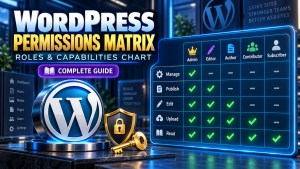
WordPress Permissions Matrix
The following matrix provides a high-level comparison of the capabilities associated with the standard WordPress roles.
Important: Actual permissions can change when plugins, custom roles, membership systems, or multisite configurations modify the default capability setup.
| Capability / Action | Super Admin | Administrator | Editor | Author | Contributor | Subscriber |
|---|---|---|---|---|---|---|
| Log in to WordPress | ✓ | ✓ | ✓ | ✓ | ✓ | ✓ |
| Read published content | ✓ | ✓ | ✓ | ✓ | ✓ | ✓ |
| Edit own posts | ✓ | ✓ | ✓ | ✓ | ✓ | — |
| Edit own published posts | ✓ | ✓ | ✓ | ✓ | — | — |
| Edit other users’ posts | ✓ | ✓ | ✓ | — | — | — |
| Publish posts | ✓ | ✓ | ✓ | ✓ | — | — |
| Delete own posts | ✓ | ✓ | ✓ | ✓ | ✓* | — |
| Delete published posts | ✓ | ✓ | ✓ | ✓ | — | — |
| Delete other users’ posts | ✓ | ✓ | ✓ | — | — | — |
| Create pages | ✓ | ✓ | ✓ | — | — | — |
| Edit other users’ pages | ✓ | ✓ | ✓ | — | — | — |
| Publish pages | ✓ | ✓ | ✓ | — | — | — |
| Manage categories | ✓ | ✓ | ✓ | — | — | — |
| Upload media | ✓ | ✓ | ✓ | ✓ | — | — |
| Moderate comments | ✓ | ✓ | ✓ | — | — | — |
| Manage plugins | ✓ | ✓ | — | — | — | — |
| Install plugins | ✓ | ✓ | — | — | — | — |
| Manage themes | ✓ | ✓ | — | — | — | — |
| Change site settings | ✓ | ✓ | — | — | — | — |
| Manage users | ✓ | ✓ | — | — | — | — |
| Access administrative settings | ✓ | ✓ | Limited | — | — | — |
| Create users | ✓ | ✓ | — | — | — | — |
| Delete users | ✓ | ✓ | — | — | — | — |
| Manage WordPress network | ✓ | —** | — | — | — | — |
* Contributor capabilities around deleting posts are more restricted than those of an Author and depend on the specific capability being checked.
** On a WordPress Multisite installation, network administration belongs to the Super Admin role rather than the regular Administrator role.
The matrix is intended as a practical comparison rather than a complete list of every individual WordPress capability.
For the exact capability definitions, see WordPress Capabilities Explained.
How to Use the WordPress Permissions Matrix
The easiest way to use the matrix is to start with the task you want a user to perform.
For example:
- Need someone to write articles but not publish them? → Contributor
- Need someone to write and publish their own articles? → Author
- Need someone to manage content written by multiple authors? → Editor
- Need someone to configure plugins, themes, users, and settings? → Administrator
- Need network-wide control across a WordPress Multisite installation? → Super Admin
This approach is more useful than simply assigning the highest available role.
A user’s role should reflect the work they actually need to perform.
Complete Guide to WordPress Permissions: Roles and Capabilities
WordPress Role Permissions at a Glance
Super Admin
The Super Admin role is primarily relevant to WordPress Multisite.
A Super Admin can perform network-level administrative tasks that are outside the normal scope of an individual site Administrator.
Typical responsibilities include:
- Managing the WordPress network
- Managing network sites
- Managing network users
- Installing or managing network-level plugins
- Managing network themes
- Accessing network administration
- Performing network-wide configuration tasks
For a normal single-site WordPress installation, the Super Admin role does not function as a separate everyday role in the same way it does in Multisite.
See WordPress Super Admin Role for a dedicated explanation.
Administrator
Administrator is the broadest standard administrative role on a normal single-site WordPress installation.
An Administrator can generally:
- Manage plugins
- Manage themes
- Manage users
- Change site settings
- Create and manage content
- Upload media
- Moderate comments
- Manage categories
- Access administrative configuration areas
This makes Administrator appropriate for someone responsible for the technical and operational management of an entire WordPress site.
It is usually too much access for a person who only needs to manage content.
Learn more in WordPress Administrator Role.
Editor
Editor is primarily a content-management role.
An Editor can work with content created by other users and can publish and manage posts and pages within the site’s normal content system.
Typical responsibilities include:
- Reviewing posts
- Editing other users’ content
- Publishing posts
- Publishing pages
- Managing categories
- Moderating comments
- Uploading media
- Managing published content
However, the Editor role does not normally provide the broad site-management capabilities associated with an Administrator.
That distinction makes Editor particularly useful for websites with multiple writers and a dedicated content manager.
Author
Author is designed for users who primarily manage their own posts.
An Author can generally:
- Create posts
- Edit their own posts
- Publish their own posts
- Upload media
- Delete their own posts within the limits of the assigned capabilities
An Author does not normally have the same authority over other users’ content as an Editor.
This makes the role suitable for independent writers who should control their own articles without receiving broader editorial privileges.
Contributor
Contributor provides a more restricted writing workflow.
A Contributor can create and edit their own posts but does not normally have the ability to publish them.
This creates a useful editorial checkpoint.
A common workflow is:
Contributor writes → Editor reviews → Editor publishes
This can be useful when a website wants every article reviewed before it becomes publicly available.
Subscriber
Subscriber is the most restricted standard WordPress role.
Its primary purpose is to allow a user to have an account and access content or features that require authentication.
A Subscriber generally does not receive normal content-management capabilities.
This makes the role suitable for:
- Membership areas
- Registered readers
- Basic user accounts
- Sites requiring login before accessing certain features
Content Permissions Matrix
If your main concern is publishing and managing content, the following simplified matrix is easier to use than the complete comparison above.
| Content Task | Administrator | Editor | Author | Contributor | Subscriber |
|---|---|---|---|---|---|
| Write posts | ✓ | ✓ | ✓ | ✓ | — |
| Edit own posts | ✓ | ✓ | ✓ | ✓ | — |
| Edit other users’ posts | ✓ | ✓ | — | — | — |
| Publish posts | ✓ | ✓ | ✓ | — | — |
| Delete own posts | ✓ | ✓ | ✓ | Limited | — |
| Publish pages | ✓ | ✓ | — | — | — |
| Edit other users’ pages | ✓ | ✓ | — | — | — |
| Manage categories | ✓ | ✓ | — | — | — |
| Upload files | ✓ | ✓ | ✓ | — | — |
| Moderate comments | ✓ | ✓ | — | — | — |
This version is particularly useful when deciding which role to assign to writers, editors, and content managers.
Administrative Permissions Matrix
Content access is only one part of WordPress permissions.
Technical administration requires a different level of access.
| Administrative Task | Administrator | Editor | Author | Contributor | Subscriber |
|---|---|---|---|---|---|
| Manage plugins | ✓ | — | — | — | — |
| Install plugins | ✓ | — | — | — | — |
| Manage themes | ✓ | — | — | — | — |
| Change site settings | ✓ | — | — | — | — |
| Manage users | ✓ | — | — | — | — |
| Create users | ✓ | — | — | — | — |
| Delete users | ✓ | — | — | — | — |
| Manage site configuration | ✓ | — | — | — | — |
| Manage content | ✓ | ✓ | Own content | Own drafts | — |
This distinction is important because content authority and technical authority are not the same thing.
Someone may need permission to publish an article without needing permission to install a plugin.
WordPress Permissions Matrix by User Type
Another practical way to select roles is to start with the user’s job.
| User Type | Recommended Role | Main Access |
|---|---|---|
| Site owner | Administrator | Full site administration |
| Network administrator | Super Admin | Multisite network management |
| Content manager | Editor | Content across multiple authors |
| Professional writer | Author | Own posts |
| Guest writer | Contributor | Draft and submit posts |
| Registered reader | Subscriber | Account and restricted content access |
This table should be treated as a starting point rather than an absolute rule.
Plugins may introduce additional roles, while custom capability configurations can change what a user can actually do.
Why a WordPress Permissions Matrix Is Useful
A permissions matrix solves a practical problem: role names alone do not tell you enough about access.
For example, saying that someone is an “Editor” does not immediately tell you whether they can:
- Publish pages
- Edit another author’s post
- Moderate comments
- Install plugins
- Change site settings
- Manage users
A matrix makes those differences visible.
It is particularly useful when:
- Building a multi-author website
- Creating user accounts for employees
- Assigning access to freelancers
- Setting up editorial workflows
- Auditing existing users
- Planning custom roles
- Troubleshooting unexpected access
- Reviewing security before launching a website
WordPress Roles vs Individual Capabilities
A role is a convenient collection of capabilities.
A capability represents a specific action that a user may or may not be allowed to perform.
For example, a role may contain capabilities related to editing posts, publishing posts, uploading files, or managing comments.
This means two users with different roles can sometimes have overlapping permissions.
It also means a custom role can be designed around a specific collection of capabilities rather than copying an existing role exactly.
For a deeper explanation, visit WordPress Roles vs Permissions and WordPress Capabilities Explained.
What Happens When You Need More Control?
The default WordPress roles work well for many websites, but they are not designed for every workflow.
Consider a company website where:
- Writers can create articles
- Senior writers can publish articles
- Editors can edit everyone else’s content
- SEO staff can update metadata
- Support staff can manage users
- Developers can manage plugins
- Nobody except the site owner can change critical settings
Using only the default roles may not provide the exact separation required.
This is where custom WordPress roles become useful.
Instead of giving someone Administrator access simply because they need one additional capability, you can create a role designed around their actual responsibilities.
See Custom WordPress Roles for more information.
WordPress Permissions and the Principle of Least Privilege
The permissions matrix can also be used as a security planning tool.
The basic principle is simple:
Give users the access they need to perform their work, and avoid granting unrelated privileges.
For example, if a freelance writer only needs to submit articles, giving that person Administrator access creates unnecessary exposure.
A Contributor role may be enough.
Likewise, if an editor needs to manage posts and pages but does not need to configure plugins or themes, an Editor role may be a better fit than Administrator.
Reducing unnecessary privileges can make user management easier and limit the potential impact of an account being compromised.
Why the Matrix May Not Match Your WordPress Site
A default WordPress permissions matrix is not necessarily an exact representation of every WordPress installation.
Your site’s effective permissions can be affected by:
Plugins
Plugins can:
- Add new roles
- Add capabilities
- Remove capabilities
- Modify existing roles
- Create specialized administrative areas
A membership plugin, LMS plugin, ecommerce plugin, or community plugin may therefore introduce permissions that do not appear in the standard WordPress role structure.
Custom Roles
Developers can create roles specifically for a site’s workflow.
For example:
SEO Manager
could potentially receive capabilities related to content and SEO management without receiving full Administrator privileges.
Individual User Capabilities
Permissions can also be assigned at the individual-user level.
Therefore, two users assigned to the same role may not necessarily have identical effective capabilities if additional permissions have been applied directly to one account.
WordPress Multisite
Multisite introduces another layer of administration.
A site Administrator and a Super Admin do not necessarily have the same scope of authority.
For network environments, always distinguish between:
site-level permissions
and
network-level permissions.
How to Audit WordPress User Permissions
You can use the matrix as a starting point for a permission audit.
Step 1: List your users
Identify everyone who currently has access to the WordPress dashboard.
Step 2: Identify each user’s responsibilities
Ask what each person actually needs to do.
For example:
- Write articles
- Publish articles
- Edit other authors
- Moderate comments
- Manage users
- Configure plugins
- Manage themes
Step 3: Compare responsibilities with the matrix
Find the lowest standard role that provides the required access.
Step 4: Check for additional capabilities
If the user’s actual access is greater than expected, investigate whether a plugin, custom role, or individual capability assignment is responsible.
Step 5: Remove unnecessary access
Avoid keeping Administrator privileges simply because they were convenient during setup.
Step 6: Review permissions periodically
User responsibilities change.
Someone who needed administrative access six months ago may now only need content-management access.
WordPress Permissions Matrix vs Role Comparison
These two concepts are related but serve different purposes.
A role comparison explains how WordPress roles differ conceptually.
A permissions matrix focuses on specific actions and access levels.
For example:
Role comparison:
An Editor is primarily responsible for managing content across multiple authors.
Permissions matrix:
Editor → Edit other users’ posts: ✓
The second format is useful when you need a quick operational answer.
Common Mistakes When Assigning WordPress Permissions
Giving everyone Administrator access
This is one of the easiest ways to make user management unnecessarily risky.
If someone only writes content, they probably do not need access to plugins, themes, or site configuration.
Confusing Editor with Administrator
Editors have substantial content-management authority, but that does not make them site administrators.
Their responsibilities are centered primarily around content.
Assuming Authors can edit everyone else’s posts
The Author role is primarily focused on the user’s own content.
If someone needs to manage content created by multiple writers, Editor is generally the more appropriate standard role.
Allowing Contributors to publish automatically
Contributors are useful precisely because they can participate in content creation without receiving normal publishing authority.
Forgetting about plugins
Your matrix may describe the default WordPress roles, but plugins can add capabilities and modify access.
Always audit permissions in the context of the actual website.
Frequently Asked Questions
What is a WordPress permissions matrix?
A WordPress permissions matrix is a table that compares user roles according to the actions and capabilities available to them. It makes it easier to determine which role is appropriate for a particular user.
Which WordPress role has the most permissions?
On a standard single-site installation, Administrator has the broadest normal site-management privileges. In WordPress Multisite, Super Admin has network-level authority beyond an individual site’s Administrator.
Can an Editor install plugins?
Not by default. Plugin management is generally associated with Administrator-level capabilities on a standard WordPress installation.
Can an Author edit another user’s post?
Not by default. Authors primarily manage their own posts.
Can a Contributor publish posts?
Not by default. Contributors can create and edit their own posts but normally require an Editor or Administrator to publish them.
Can WordPress permissions be customized?
Yes. WordPress supports custom roles and capabilities, and plugins can also modify the available permission structure.
Are WordPress roles and capabilities the same thing?
No. A role is a collection of capabilities. Capabilities represent individual actions a user may be allowed to perform.
Can two users with the same role have different permissions?
Yes. Additional capabilities can be assigned or removed through plugins, custom configurations, or individual user settings.
Final WordPress Permissions Matrix
The most important point is that role assignment should follow responsibility, not status.
Use the matrix to determine what a user needs to accomplish, select the least powerful standard role that satisfies those requirements, and investigate custom roles when the default WordPress structure does not provide enough precision.
For more details check: Complete Guide to WordPress Permissions: Roles and Capabilities
Enjoy this post?

Discover more from WORDPRESS ROLES
Subscribe to get the latest posts sent to your email.