

WordPress user roles determine what each person can and cannot do on your website. Whether you run a personal blog, business website, online magazine, or WooCommerce store, understanding default WordPress roles is essential for managing users safely and efficiently.
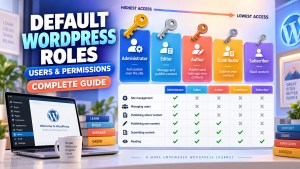
By default, WordPress includes six main user roles: Administrator, Editor, Author, Contributor, Subscriber, and Super Admin. The Super Admin role is specific to WordPress Multisite installations.
Each role comes with a different set of permissions, known as capabilities. These capabilities control actions such as creating posts, publishing content, managing comments, installing plugins, changing themes, and managing other users.
In this guide, you’ll learn what each default WordPress role can do, which role you should assign to different users, and how WordPress roles and permissions work together.
What Are Default WordPress Roles?
Default WordPress roles are the user roles that WordPress provides automatically when you install the platform.
A role is essentially a collection of permissions. Instead of assigning individual permissions to every user, WordPress allows you to assign a predefined role.
For example:
- An Administrator can manage almost everything on a standard WordPress website.
- An Editor can manage and publish content created by other users.
- An Author can create and publish their own posts.
- A Contributor can write posts but cannot publish them.
- A Subscriber has very limited access.
- A Super Admin can manage an entire WordPress Multisite network.
This role-based system makes it easier to control access without giving every user unnecessary privileges.
The 6 Default WordPress Roles
Here is a quick overview of the default WordPress roles:
| WordPress Role | Main Purpose | Can Publish Posts? | Can Manage Plugins? |
|---|---|---|---|
| Administrator | Manage an individual website | Yes | Yes |
| Editor | Manage website content | Yes | No |
| Author | Publish own posts | Yes | No |
| Contributor | Write and submit posts | No | No |
| Subscriber | Basic user/account access | No | No |
| Super Admin | Manage a Multisite network | Yes | Yes |
The exact capabilities available to a role can vary depending on whether you’re using a standard WordPress installation, WordPress Multisite, or plugins that modify user permissions.
1. Administrator Role
The Administrator is the highest standard user role on a single WordPress website.
Administrators have access to most administrative functions, including website settings, users, plugins, themes, and content.
What Can an Administrator Do?
An Administrator can generally:
- Create, edit, publish, and delete posts
- Create and manage pages
- Upload and manage media
- Manage comments
- Create, edit, and delete users
- Assign user roles
- Install and remove plugins
- Activate and deactivate plugins
- Install and manage themes
- Change WordPress settings
- Manage menus and widgets
- Import and export website data
- Update WordPress
- Manage many security-related settings
Because this role has extensive privileges, it should only be assigned to people who genuinely need complete administrative access.
When Should You Use the Administrator Role?
Use the Administrator role for trusted people responsible for managing the entire website.
For example:
- Website owners
- Technical administrators
- Developers
- Trusted agency staff
Avoid giving Administrator access to ordinary writers or clients unless they actually need it.
2. Editor Role
The Editor role is designed primarily for managing website content.
Editors can generally create, edit, publish, and delete content, including content created by other users.
What Can an Editor Do?
An Editor can typically:
- Create posts
- Edit posts
- Publish posts
- Delete posts
- Edit other users’ posts
- Create pages
- Edit pages
- Publish pages
- Delete pages
- Manage categories
- Manage tags
- Upload media
- Moderate comments
However, Editors normally do not have access to sensitive administrative functions such as installing plugins, changing themes, or modifying core WordPress settings.
When Should You Use the Editor Role?
The Editor role is useful for:
- Content managers
- Editorial teams
- Blog managers
- Publishing managers
- Senior content writers
For a multi-author website, the Editor role can be an excellent way to give someone substantial content-management capabilities without giving them full Administrator access.
3. Author Role
The Author role is intended for users who create and publish their own content.
Authors have more publishing privileges than Contributors but fewer permissions than Editors.
What Can an Author Do?
An Author can generally:
- Create posts
- Edit their own posts
- Publish their own posts
- Delete their own posts
- Upload media
- Manage their own content
An Author normally cannot edit or delete posts created by other users.
When Should You Use the Author Role?
Use the Author role when you have independent writers who are responsible for publishing their own articles.
For example, you might assign this role to:
- Freelance writers
- Guest authors
- Regular bloggers
- Subject-matter contributors
If you want every article to be reviewed before publication, however, the Contributor role may be more appropriate.
4. Contributor Role
The Contributor role is designed for users who can write content but do not have permission to publish it themselves.
This makes the role particularly useful when your website has an editorial review process.
What Can a Contributor Do?
A Contributor can generally:
- Create posts
- Edit their own unpublished posts
- Submit posts for review
However, Contributors cannot normally publish their own posts.
They also have more limited access to media management than Authors.
How Does the Contributor Workflow Work?
A typical workflow might look like this:
Contributor writes article → submits it for review → Editor reviews article → Editor publishes article
This gives your editorial team greater control over what appears on the website.
When Should You Use the Contributor Role?
The Contributor role can be useful for:
- New writers
- Guest contributors
- Junior writers
- Freelancers whose work requires approval
- Websites with strict editorial review
5. Subscriber Role
The Subscriber is the most restricted standard WordPress role.
Subscribers generally have very limited permissions and are primarily intended for users who need an account on the website without content-management privileges.
What Can a Subscriber Do?
Depending on the site’s configuration, a Subscriber can generally:
- Log into the website
- Manage their profile
- Change certain account information
- Read content available to users
They cannot normally create or publish posts.
When Should You Use the Subscriber Role?
The Subscriber role can be useful for:
- Membership websites
- Community websites
- Websites requiring user accounts
- Sites where registered users need basic profile access
Plugins can extend the Subscriber role with additional capabilities.
6. Super Admin Role
The Super Admin role is different from the other default WordPress roles because it applies to WordPress Multisite.
A Super Admin has network-level administrative privileges.
Instead of managing only one website, a Super Admin can manage the entire Multisite network, depending on the specific capability involved.
What Can a Super Admin Do?
A Super Admin can generally:
- Manage the Multisite network
- Create and manage sites
- Manage network users
- Install network plugins
- Manage network themes
- Configure network settings
- Manage network-wide functionality
- Access individual sites within the network
For example, a company running multiple WordPress websites from a single Multisite installation could use Super Admin accounts for its central technical team.
Administrator vs. Super Admin
The distinction is important:
Administrator: manages one WordPress site.
Super Admin: manages the WordPress Multisite network.
A normal WordPress installation does not have a Super Admin role in the same way a Multisite network does.
WordPress Roles vs. Capabilities
One of the most important concepts to understand is the difference between a role and a capability.
A role is a collection of permissions assigned to a user.
A capability is a specific permission that allows a user to perform an action.
For example, capabilities can include permissions related to:
- Editing posts
- Publishing posts
- Deleting posts
- Managing categories
- Uploading files
- Managing users
- Installing plugins
- Editing themes
Think of it this way:
Role → contains capabilities → capabilities determine what the user can do
For example:
Author → publish_posts → can publish posts
while:
Contributor → cannot publish_posts → cannot publish posts
This distinction becomes particularly important when you start creating custom WordPress roles.
WordPress Default Roles Comparison
The following comparison makes it easier to understand how the standard roles differ.
| Capability / Action | Administrator | Editor | Author | Contributor | Subscriber |
|---|---|---|---|---|---|
| Manage site settings | ✅ | ❌ | ❌ | ❌ | ❌ |
| Manage plugins | ✅ | ❌ | ❌ | ❌ | ❌ |
| Manage themes | ✅ | ❌ | ❌ | ❌ | ❌ |
| Manage users | ✅ | ❌ | ❌ | ❌ | ❌ |
| Publish posts | ✅ | ✅ | ✅ | ❌ | ❌ |
| Edit own posts | ✅ | ✅ | ✅ | ✅ | ❌ |
| Edit others’ posts | ✅ | ✅ | ❌ | ❌ | ❌ |
| Delete own posts | ✅ | ✅ | ✅ | limited | ❌ |
| Upload media | ✅ | ✅ | ✅ | limited | ❌ |
| Manage comments | ✅ | ✅ | ❌ | ❌ | ❌ |
Note: Actual capabilities can be changed by plugins, themes, custom code, or WordPress configuration. The table represents the general purpose of the standard roles rather than every individual capability WordPress contains.
Which WordPress Role Should You Choose?
Choosing the right role depends on what the user needs to accomplish.
Give Administrator Access When:
The user needs to manage the entire website, including technical settings.
Example: Website owner or trusted technical administrator.
Give Editor Access When:
The user needs to manage and publish content created by multiple writers.
Example: Content manager or editorial manager.
Give Author Access When:
The user needs to publish their own articles but shouldn’t manage other authors’ content.
Example: Regular blog writer.
Give Contributor Access When:
The user should write articles but another person must approve and publish them.
Example: New freelance writer.
Give Subscriber Access When:
The user only needs basic account access.
Example: Registered member.
Give Super Admin Access When:
The user needs to manage a WordPress Multisite network.
Example: Network administrator.
Why You Shouldn’t Give Everyone Administrator Access
One of the most common WordPress permission mistakes is giving every user the Administrator role.
It may seem convenient, but it creates unnecessary security and management risks.
An Administrator can access powerful website functions. If an administrator account is compromised, an attacker may gain extensive control over the website.
A better approach is to follow the principle of least privilege:
Give each user only the permissions they actually need.
For example, if someone only writes articles, they probably don’t need permission to install plugins.
If someone manages editorial content, they probably don’t need access to WordPress theme files.
Using the appropriate role reduces unnecessary access and makes your website easier to manage.
Can You Change a User’s WordPress Role?
Yes.
WordPress administrators can change a user’s role from the WordPress dashboard.
Typically, you can go to:
Users → All Users
Then:
- Find the user.
- Select the user.
- Choose the appropriate role.
- Save the changes.
Changing a role can immediately change what the user is allowed to access.
For example, changing someone from Contributor to Author gives that person additional publishing capabilities.
Can You Create Custom WordPress Roles?
Yes.
Although WordPress provides several default roles, they may not always fit your exact requirements.
For example, suppose you want a user who can:
- Create posts
- Edit posts
- Upload images
- View certain settings
but cannot publish posts or install plugins.
None of the standard roles may provide exactly that combination.
In that situation, you can create a custom WordPress role with a specific set of capabilities.
Custom roles can be particularly useful for:
- Membership websites
- Large editorial teams
- Agencies
- Client websites
- WooCommerce stores
- Learning platforms
- Community websites
Plugins can also create additional roles and capabilities.
Default WordPress Roles and WooCommerce
If you’re running a WooCommerce store, you’ll encounter additional roles.
WooCommerce commonly introduces roles such as:
- Customer
- Shop Manager
These are not part of the core WordPress default roles.
The Customer role is designed for shoppers and customers, while the Shop Manager role provides store-management capabilities without giving the user the full privileges of a WordPress Administrator.
This distinction is important when building a complete WordPress roles and permissions strategy.
Default WordPress Roles vs. Custom WordPress Roles
There are two broad approaches to WordPress user management.
Default WordPress Roles
These are the roles WordPress provides automatically:
- Administrator
- Editor
- Author
- Contributor
- Subscriber
- Super Admin for Multisite
They are suitable for many standard websites.
Custom WordPress Roles
Custom roles allow you to create a permission structure specifically for your website.
For example:
SEO Manager
Could potentially manage:
- SEO settings
- Posts
- Pages
- Metadata
without receiving complete Administrator access.
This approach can provide more precise control over user permissions.
Frequently Asked Questions
How many default WordPress roles are there?
WordPress provides five primary roles for standard single-site installations: Administrator, Editor, Author, Contributor, and Subscriber.
WordPress Multisite also includes the Super Admin role for network-level administration.
What is the highest WordPress role?
On a standard single WordPress site, Administrator is the highest standard role.
On a WordPress Multisite network, Super Admin has network-level privileges beyond those of a site Administrator.
What is the lowest WordPress role?
Subscriber is generally the most restricted standard WordPress role.
Can an Editor install plugins?
Normally, no. Plugin management is generally reserved for Administrators on a standard WordPress installation.
Can an Author publish posts?
Yes. An Author can generally publish their own posts.
Can a Contributor publish posts?
No. Contributors normally submit their posts for review instead of publishing them directly.
Can WordPress roles be customized?
Yes. WordPress roles and capabilities can be modified, and custom roles can be created using plugins or code.
Are WooCommerce roles default WordPress roles?
No. Roles such as Customer and Shop Manager are associated with WooCommerce rather than WordPress core.
Final Thoughts
Understanding default WordPress roles is one of the foundations of effective WordPress user management.
The five main single-site roles provide a useful hierarchy:
Administrator → Editor → Author → Contributor → Subscriber
Each role provides a different level of access, allowing website owners to give users the permissions they need without automatically giving them complete control.
For WordPress Multisite, the Super Admin role adds another level of network-wide administration.
The most important principle is simple: assign the lowest level of access that allows a user to perform their job effectively.
As your website grows, you may eventually need more precise permissions than the default roles provide. That’s when custom WordPress roles and capabilities become particularly valuable.
If you’re building a complete WordPress permissions system, understanding the difference between roles, capabilities, default roles, and custom roles will help you create a safer and more manageable website.
Learn More About WordPress Roles
Start here For a complete overview of all WordPress roles. See our WordPress Roles and Permissions: The Complete Guide — Our comprehensive pillar guide covering all 6 default roles, 50+ capabilities, and security best practices.
Browse all guides: WordPress Roles category — All our WordPress roles content in one place.
Related Resources
- WordPress Capabilities List — Complete list of all 50+ WordPress capabilities
- WordPress Security Best Practices — How to secure your WordPress site and user roles
- WordPress Role Management Plugins — Best plugins to manage and customize user roles
- WordPress User Management — How to add, edit, and manage WordPress users
Official WordPress Resources
- WordPress.org: Roles and Capabilities Documentation
- WordPress Developer Handbook: Roles and Capabilities
- User Role Editor Plugin
- Members Plugin by MemberPress
Enjoy this post?

Discover more from WORDPRESS ROLES
Subscribe to get the latest posts sent to your email.
WordPress User Roles: Who Can manage WordPress posts and Comments